Upgrading to an Investment Model
Carry planning answers into the investment wizard and unlock the full data room.
Overview
When you're ready to raise, upgrade your free Planning model to an Investment model. Every business type supports the upgrade. It requires Build It Yourself - if you're still on the free tier, the upgrade buttons take you through the Build It Yourself checkout first.
The upgrade is not a rebuild: your planning answers carry over, the wizard is pre-filled, and your suggested raise seeds the funding round.
Step 1: Start the Upgrade
Two entry points, same flow:
- The "Build Investment Model" button in your planning model's header
- The "Continue to investment model" button on the planning preview page
Step 2: The Upgrade Checkpoint
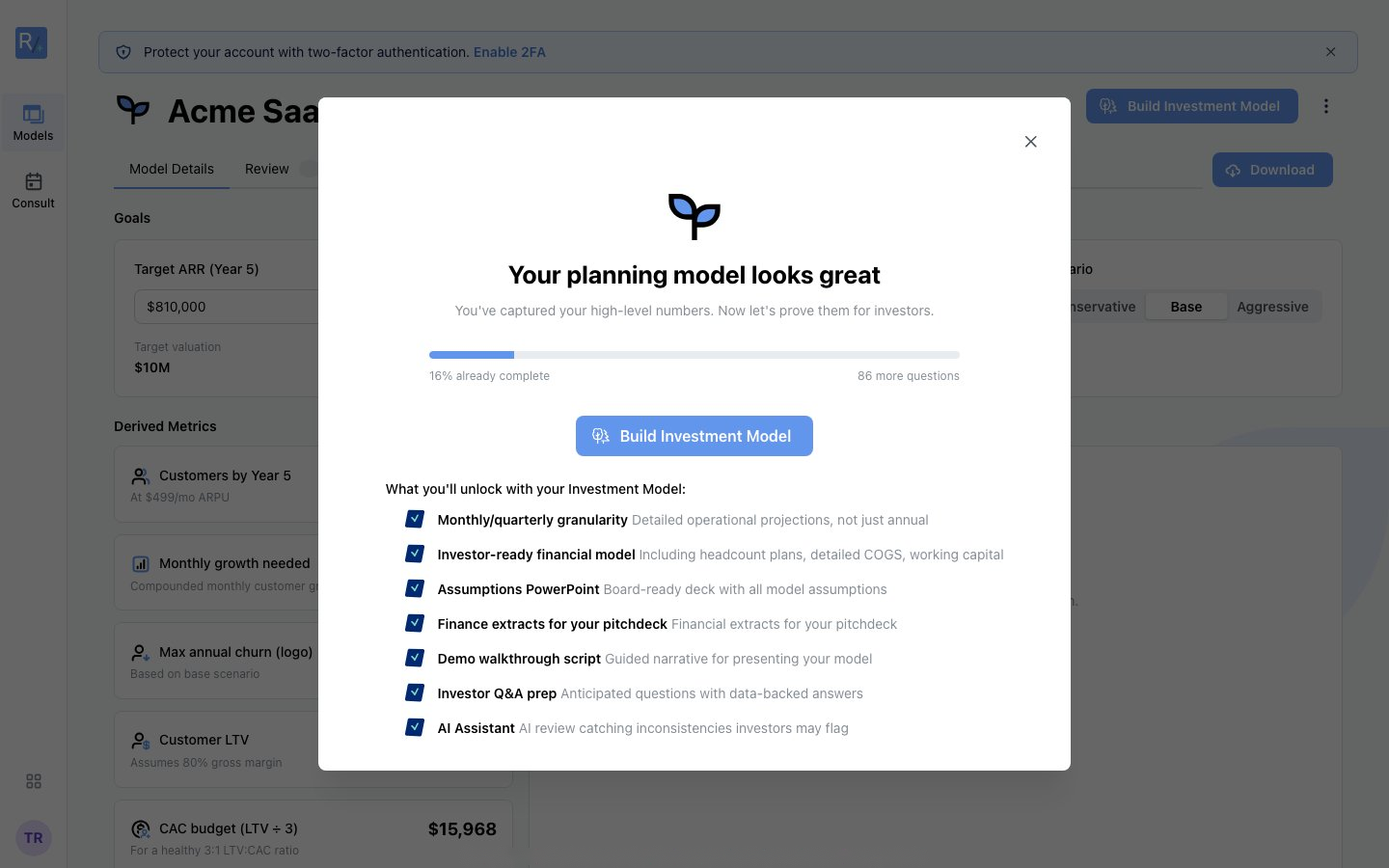 Before the wizard opens, Radley tells you where you stand: open warnings that will carry over, how much of the investment questionnaire your planning answers already cover, and what you'll unlock.
The dialog shows:
- Open warnings - e.g. "Your planning model has 3 warnings to review. Check the Review tab to fix flagged assumptions before building your Investor Model. They will carry over."
- Progress - how complete you already are and how many questions remain
- What you'll unlock - deeper statement detail (working capital, PP&E, retained earnings, multi-round funding), the investor-ready model, investor Q&A prep, and the AI assistant
Click Continue Anyway (or go fix the warnings first - recommended).
Step 3: The Investment Wizard
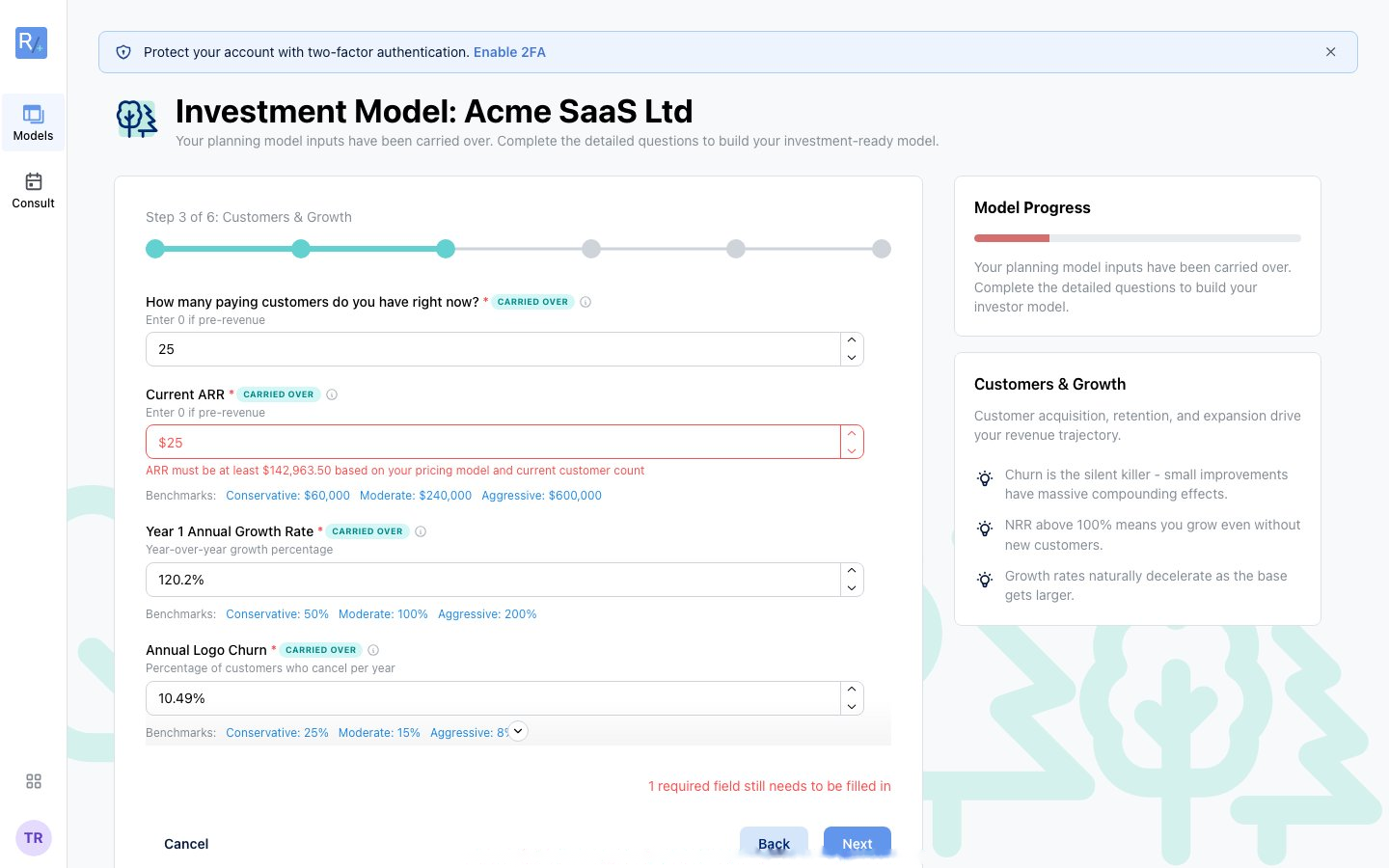 "Your planning model inputs have been carried over. We will build the investment-grade model from the same drivers using the monthly investment engine." The Live preview panel shows the model your carried numbers imply.
The wizard has three steps: Required Questions → Enhanced Questions → Review & Submit.
- Pre-filled values - company details, stage, market numbers, and drivers arrive from your planning model; carried fields are marked with a "Carried over" badge
- Live preview - annual GMV, take rate, Y1 platform revenue, and net revenue recompute as you type
- New required questions - the investment engine asks for what planning didn't need - e.g. a one-sentence description of your business and your marketplace type
- Enhanced Questions - optional depth: "These optional questions help make your model more accurate. Skip any that don't apply to your business." This is also where you add extra revenue streams (e.g. seller subscriptions):
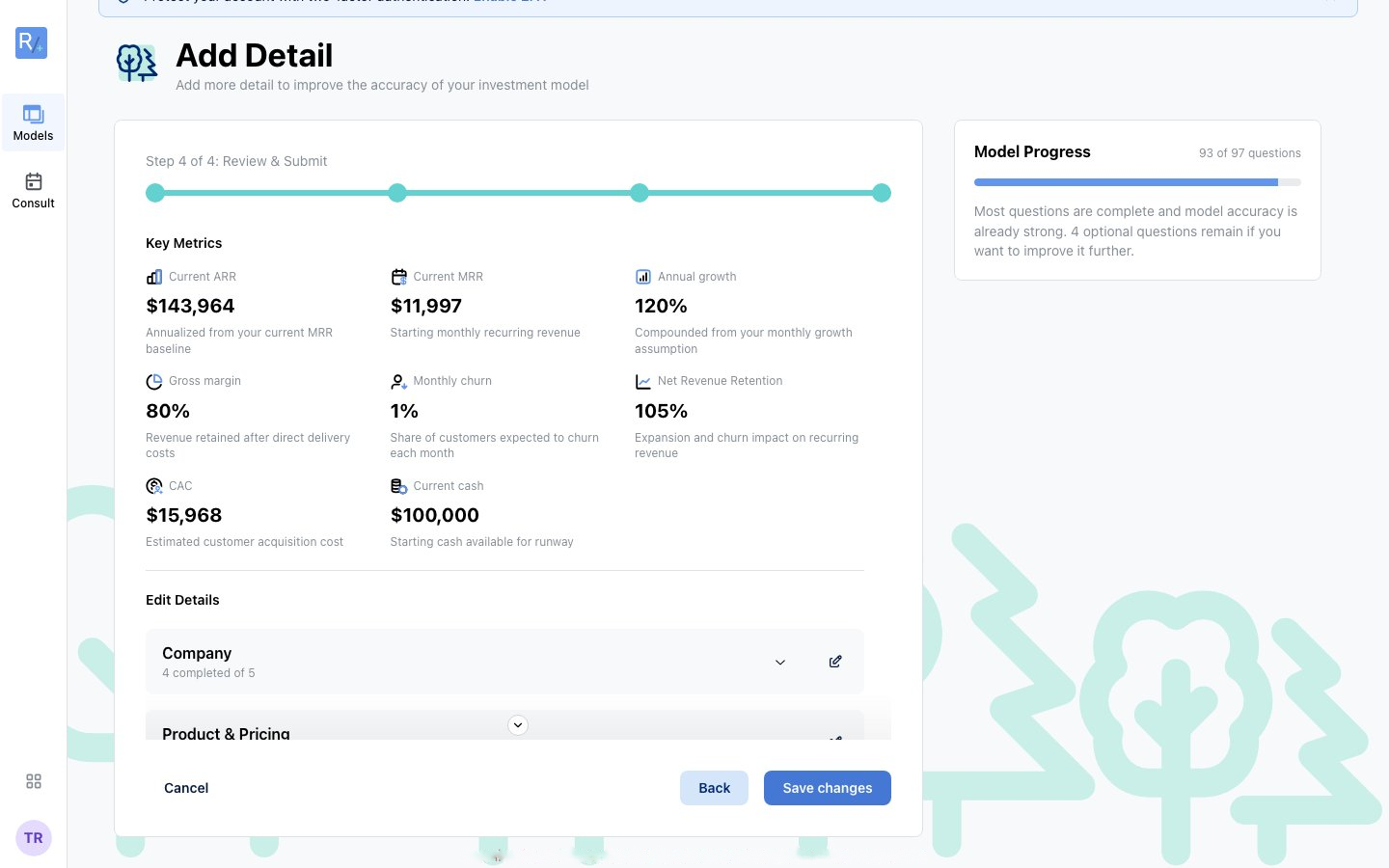 Enhanced questions are optional - skip freely. "Add revenue stream" models additional lines beyond your core engine.
- Seeded funding round - your round is pre-built from the suggested raise on your planning preview (round size, timing, and pricing), ready to adjust
Step 4: Build
On Review & Submit, click "Create investment model". The model is rebuilt on the monthly engine and your page gains the full tab bar: Assumptions, Review, Model, Q&A Prep, Investor Memo, Rehearsal, History - plus Ask AI and the Download menu.
Your planning versions stay in the History tab.
After Upgrading: A Checklist
- Open the Review tab - the carried warnings are waiting; the health score tells you where you stand
- Personalise the defaults - the "Defaults a VC will challenge first" list shows which assumptions are still industry defaults
- Flip through scenarios - check the Conservative case doesn't run out of cash
- Read your Q&A Prep and Investor Memo - they're generated from your numbers; anything that reads wrong usually points at an assumption to fix
- Download the workbook and skim it the way an analyst would