Starting a New Model
Purpose, business type, and how to start: guided planning, describe, upload, or the full investment wizard.
Accessing Model Creation
From the Models Overview
- Log into Radley Finance
- You'll land on the Models Overview page (your home page after login)
- Click "New Model" - or "Create your first model" if your workspace is empty
The New Model Modal
A guided modal walks you through a few quick choices before any questions begin.
Step 1: Purpose
"What is this model for?" - choose Raise investment or Allocate capital.
Step 2: Business Type
"What kind of business are you modelling?" - pick from the five types:
| Business type | Typical revenue engine |
|---|---|
| SaaS | Recurring subscriptions, retention, LTV and CAC |
| Marketplace | GMV, take rate, supply and demand sides |
| Hardware | Units shipped, product costs, inventory and warranty |
| Services | Delivery capacity, pipeline, and retainers |
| Ecommerce | Orders, unit economics, and inventory |
Step 3: How to Start
"Start building a planning model" offers four ways in:
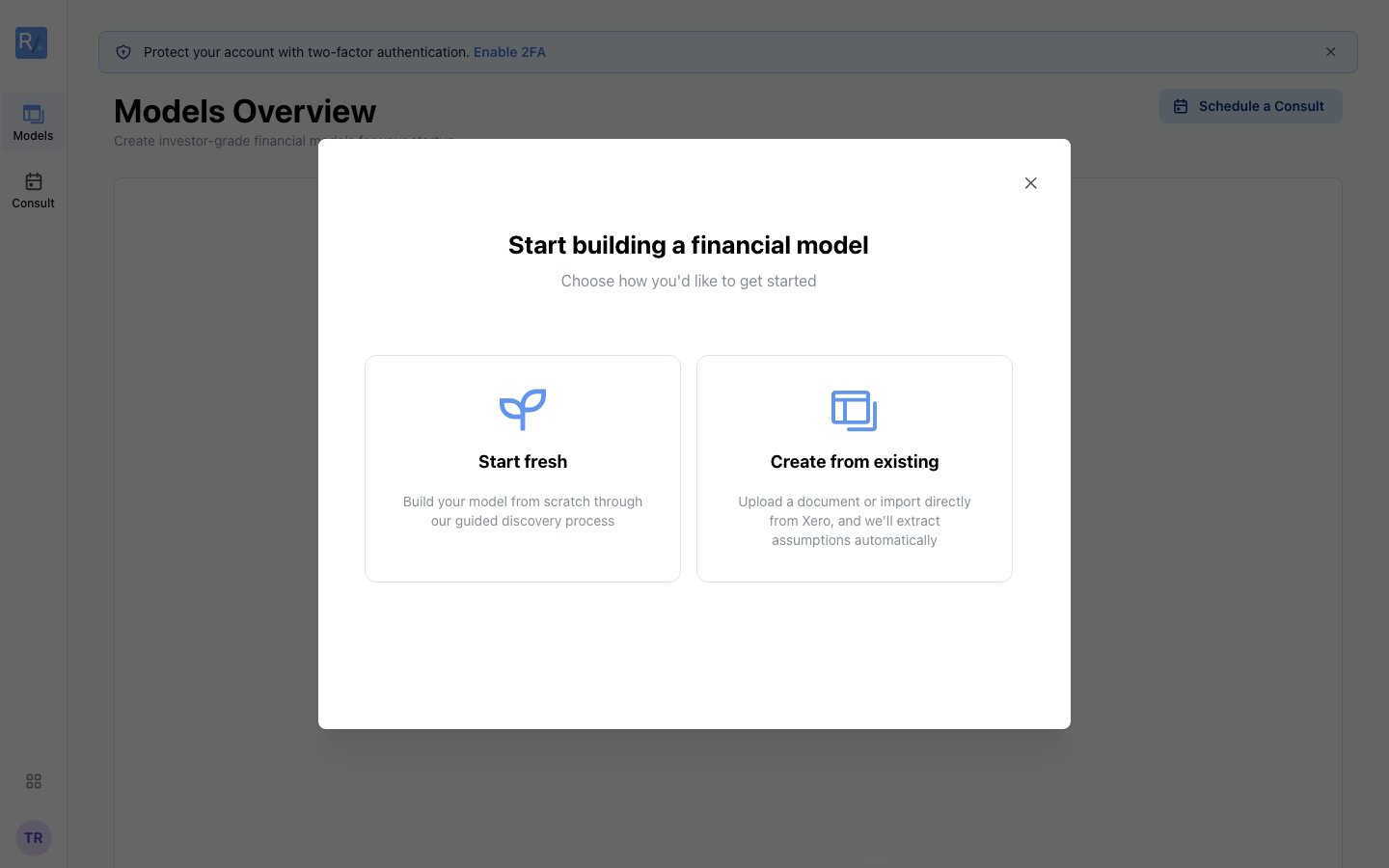 Four ways to start. "Start planning" is the guided default - and it's free.
- Start planning - Answer guided discovery questions and validate your direction from scratch. This is the free planning wizard and the recommended path.
- Describe your business - Tell us what you sell, pricing, customers, and goals in plain language; we turn it into starter assumptions.
- Create from existing - Upload a document, or import from Xero (coming soon).
- Build detailed model (Advanced) - Opens the full investment-grade wizard for your vertical (requires Build It Yourself). Planning stays free.
Tip: Even if you plan to upgrade, starting with the planning wizard is usually faster - your answers carry into the investment wizard, and the Review step catches weak assumptions before an investor does.
What Happens Next
- Start planning takes you to the four-step planning wizard - see Completing the Questionnaire
- Describe your business and Create from existing first extract assumptions for your review - see Importing Existing Data