The Models Dashboard
Find, search, favourite, rename, and open models from the Models Overview.
Overview
The Models Overview page is your home base in Radley Finance. It's where you see all your financial models, create new ones, and manage them.
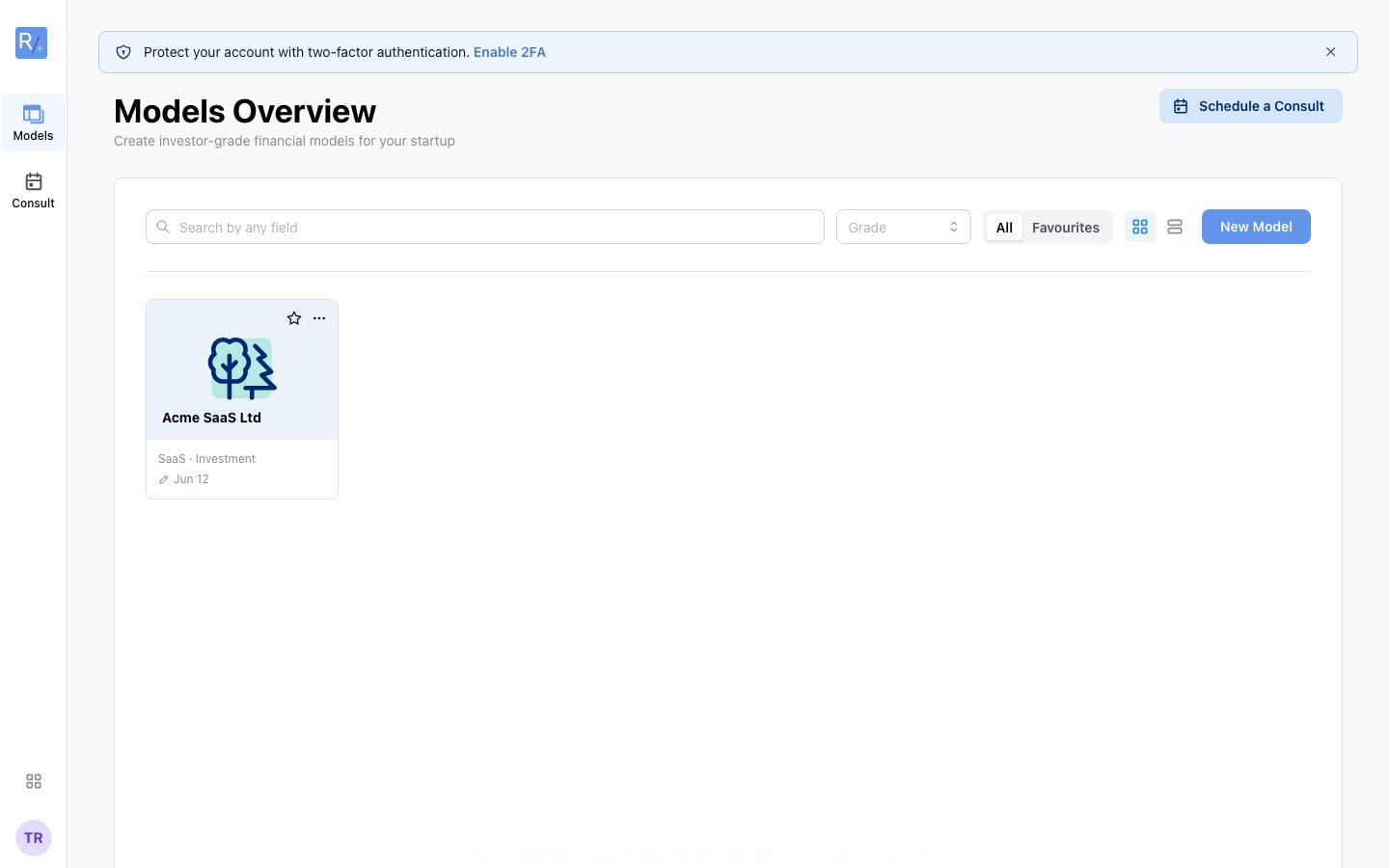 The Models Overview in card view: two models, both favourited, with type and tier under each name.
Accessing the Dashboard
The Models Overview is your default landing page after logging in. You can also get there by:
- Clicking Models in the icon sidebar (or the Radley logo)
- Navigating to
/financial-modelsin your browser
Page Layout
Header
- Title: Models Overview - "Create investor-grade financial models for your startup"
- Schedule a Consult - book a CPA call
- New Model - start the new model flow
Toolbar
- Search by any field - filters your model list as you type
- Grade filter - show only Planning or Investment models
- All / Favourites toggle
- Card / list view toggle
Model Cards
Each model shows its name, business type and tier (e.g. "Marketplace · Investment", "SaaS · Planning"), and last-edited date, plus:
- A star to favourite the model (favourites surface under the Favourites toggle)
- A three-dot menu with quick actions
Model Actions
| Action | How |
|---|---|
| Open | Click the model card |
| Favourite / Unfavourite | Click the star on the card |
| Edit | Three-dot menu > Edit - opens the edit wizard pre-filled with current values |
| Delete | Three-dot menu > Delete - asks for confirmation; this cannot be undone |
| Rename | Open the model, then click the pencil next to its name |
Renaming a Model
Renaming happens on the model's own page - click the pencil icon next to the model name, type the new name, and confirm with the check mark (or press Enter):
Drafts
If you leave a new-model wizard partway through, your answers are kept on your device and offered to resume next time - so an interruption doesn't cost you your progress. A model only appears on the dashboard once you've clicked its build button.
Tips
- Favourite the model you're actively raising with - it keeps the list clean as you accumulate planning experiments
- Use search once you have more than a handful of models - it matches any field, not just the name
- Delete carefully - deletion is permanent and removes the model's history too