Part 1: Getting started
From a brand-new account to your first model: accounts, onboarding, and choosing a plan.
Welcome to Radley Finance
Radley Finance is a financial modelling platform built for startups. It guides you through structured questions about your business, benchmarks every assumption against industry data, and generates investor-ready financial models and forecasts in under an hour, not weeks.
What you can do with Radley Finance:
- Build professional financial models for five business types, all available today: SaaS, Services, Ecommerce, Hardware, and Marketplace. Each gets its own purpose-built model structure, not a relabelled template.
- Choose your depth — start with a quick, goal-oriented Planning Model, then continue into a full, investor-ready Investment Model when you need it. Your answers carry forward.
- Start your way — guided wizard, describe your business in plain language, or upload an existing deck or spreadsheet.
- Get automated insights — a Sanity Report with a 0–100 Health Score, investor Q&A Prep, an Investor Memo, and Rehearsal to practise defending your numbers.
- Connect your accounting data — connect Xero from Settings. In-model actuals tracking is rolling out.
- Export a professional Excel workbook — formula-linked P&L, balance sheet, cash flow, and your vertical's driver sheets, ready for investor meetings.
Importantly, the numbers in your model are driven by deterministic formulas, not AI. AI is used where it excels (extracting assumptions from a description or an uploaded deck, narrative prep) while every calculation in your model is rigorously tested and produces consistent, defensible results.
Your journey in four steps:
- Create your account (email, Google, or Microsoft).
- Complete the six-step onboarding to set up your company profile.
- Choose your plan (Finance Pro).
- Create your first model.
Creating your account
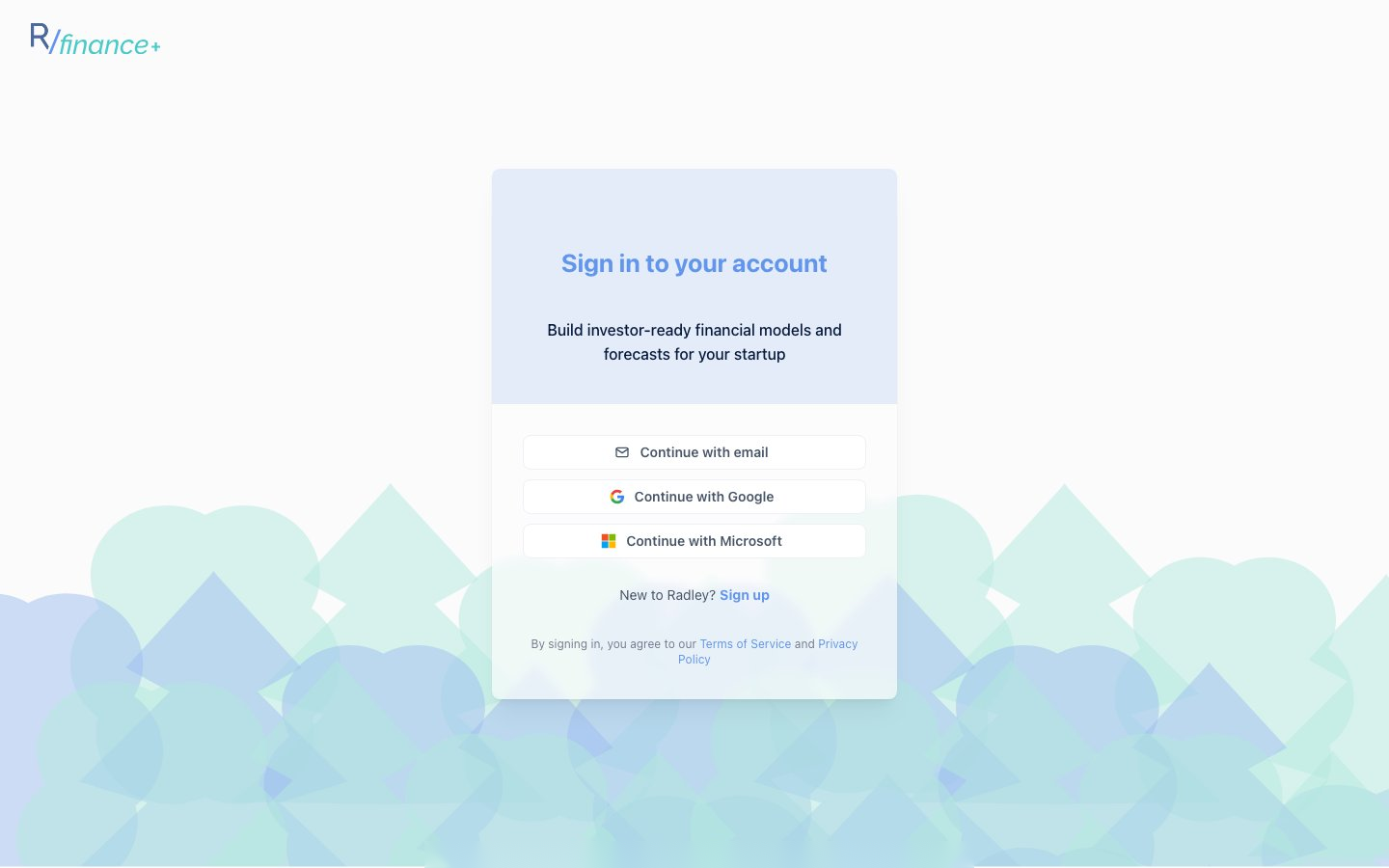 Figure 1: The sign-in page. New users click Sign up below the provider buttons.
You can create an account three ways: with email and password, or by signing in with Google or Microsoft. We only request basic profile information (name and email). We never access your emails, documents, or other personal data.
Email and password
- On the sign-in page, click the Sign up link.
- Enter your name and email address, then click Continue.
- Choose a password (at least 8 characters), confirm it, and click Create account.
- Check your inbox for a verification email and click the link. The verification screen checks automatically, or click "I've verified my email". You can resend the email once per minute if it doesn't arrive.
Google or Microsoft sign-in
Click "Continue with Google" or "Continue with Microsoft", select your account, and approve the connection. You'll be redirected straight into the app. No separate email verification needed.
Signing in later
- Email users: enter your email and password. If two-factor authentication is enabled, you'll also enter a 6-digit code from your authenticator app.
- Forgot your password? Click "Forgot password?" on the sign-in form for an emailed reset link.
- Google/Microsoft users: just click your provider button again.
Tip: Seeing "Email already in use"? An account already exists for that address. Switch to Sign in, or use "Forgot password?" to reset.
Setting up your company profile
After creating your account, a short onboarding flow sets up your company profile. Six quick steps, one question per screen, with a progress bar at the top. This information personalises your experience and is used in your financial models.
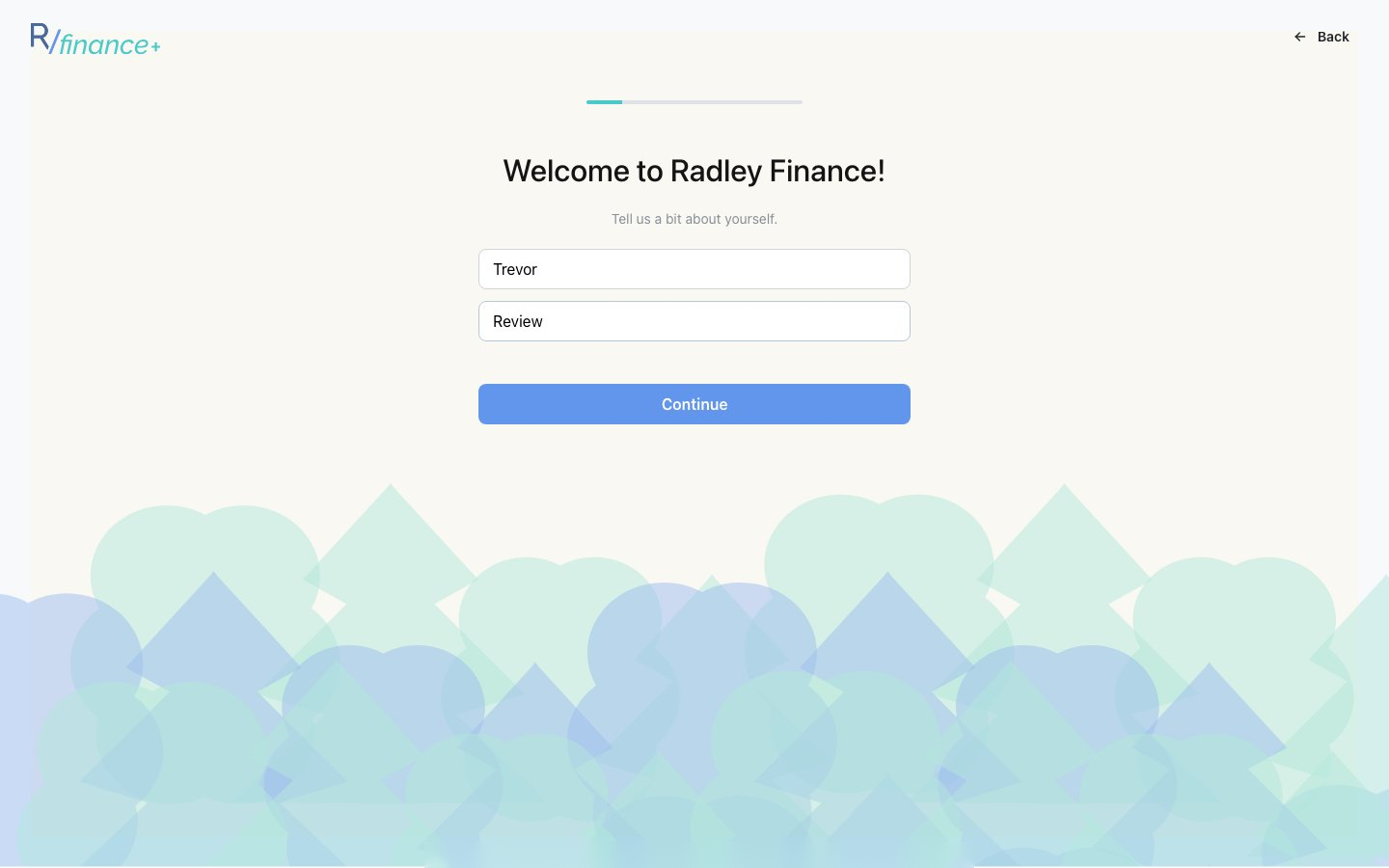 Figure 2: Onboarding asks one question per screen, starting with your name.
What you'll provide:
- Your name and role — e.g. Founder, CEO, CFO. This helps contextualise guidance throughout the app.
- Company name — appears on your financial models and exports (you can rename it anytime).
- Industry — helps contextualise your assumptions.
- Jurisdiction — where your company is based. This sets the currency used in your models.
- Founded year — used for historical context in your models.
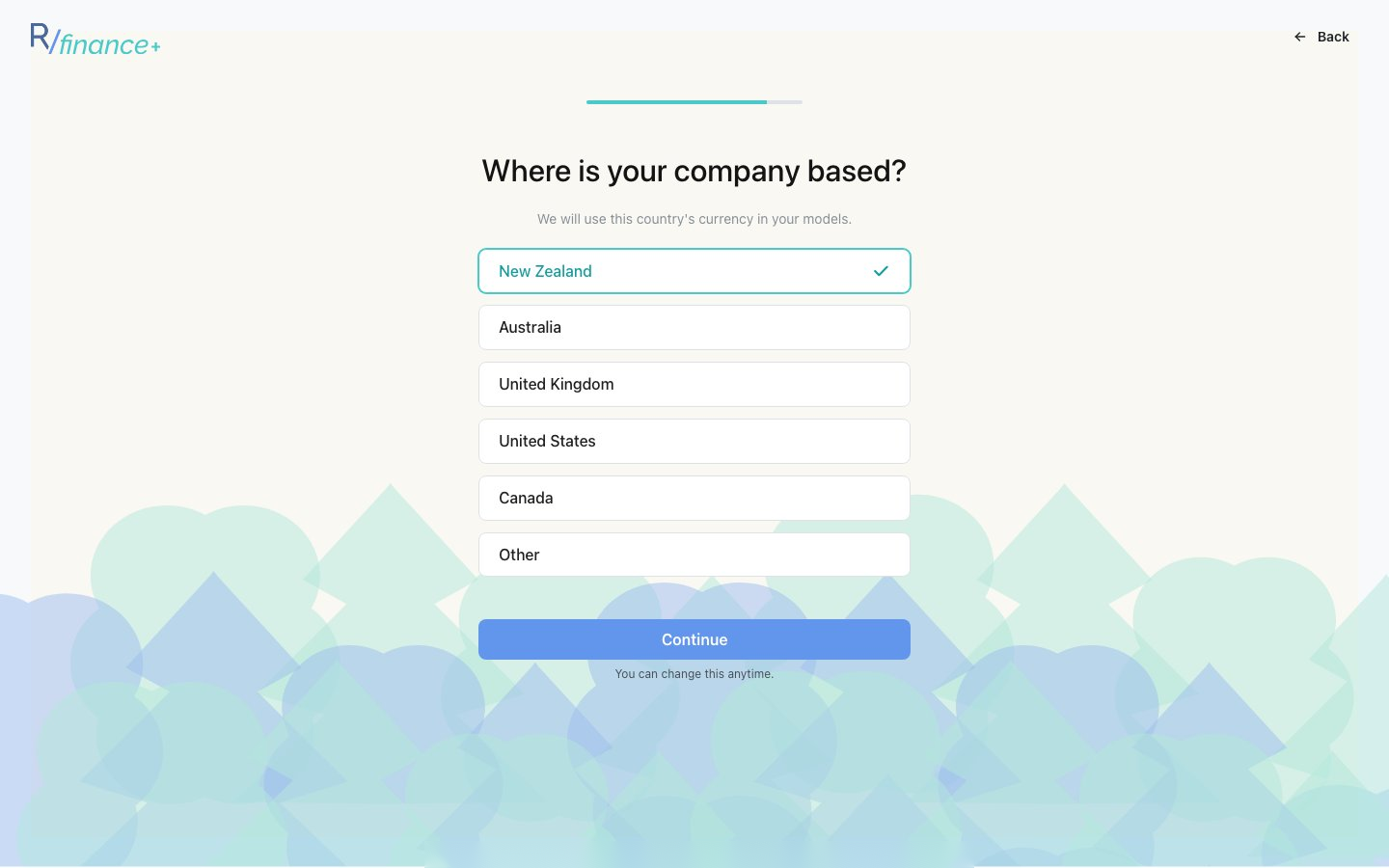 Figure 3: Jurisdiction sets your model currency. Changeable anytime.
Answer each question and click Continue; the final step's button reads Complete setup. You can go Back to correct earlier answers, and everything can be edited later under Settings > Profile and Settings > Company, so don't worry about perfection.
Choosing your plan
After onboarding you'll choose how you want your model built. There are three options:
| Plan | Price | Best for |
|---|---|---|
| Finance Pro | US$2,500/year | Self-serve access to everything: Planning and Investment models across all five business types, Review and investor-prep tools, Excel exports, email support, and CPA review. |
| Built For You | US$2,995/model | Founders who want our qualified accountants to build the model from their existing drafts, decks, or data. |
| Model Teardown | US$500 one-off | Founders who already have a model and want a professional CPA QA of their assumptions, logic, and risks before pitching. The fee credits toward Built For You if you upgrade. |
For Finance Pro, click Start building and complete payment through our secure Stripe checkout. Your subscription activates immediately. Billing is annual with automatic renewal, and you can manage payment methods, invoices, and cancellation anytime in Settings > Billing. Built For You and Model Teardown are one-off payments; after checkout you'll be guided to upload your documents and book a call with our CPA.
Tip: There's no self-serve free trial, but you can book a call from the plan page (or email support@radley.tax) and we'll walk you through the product.